Tracking Tags
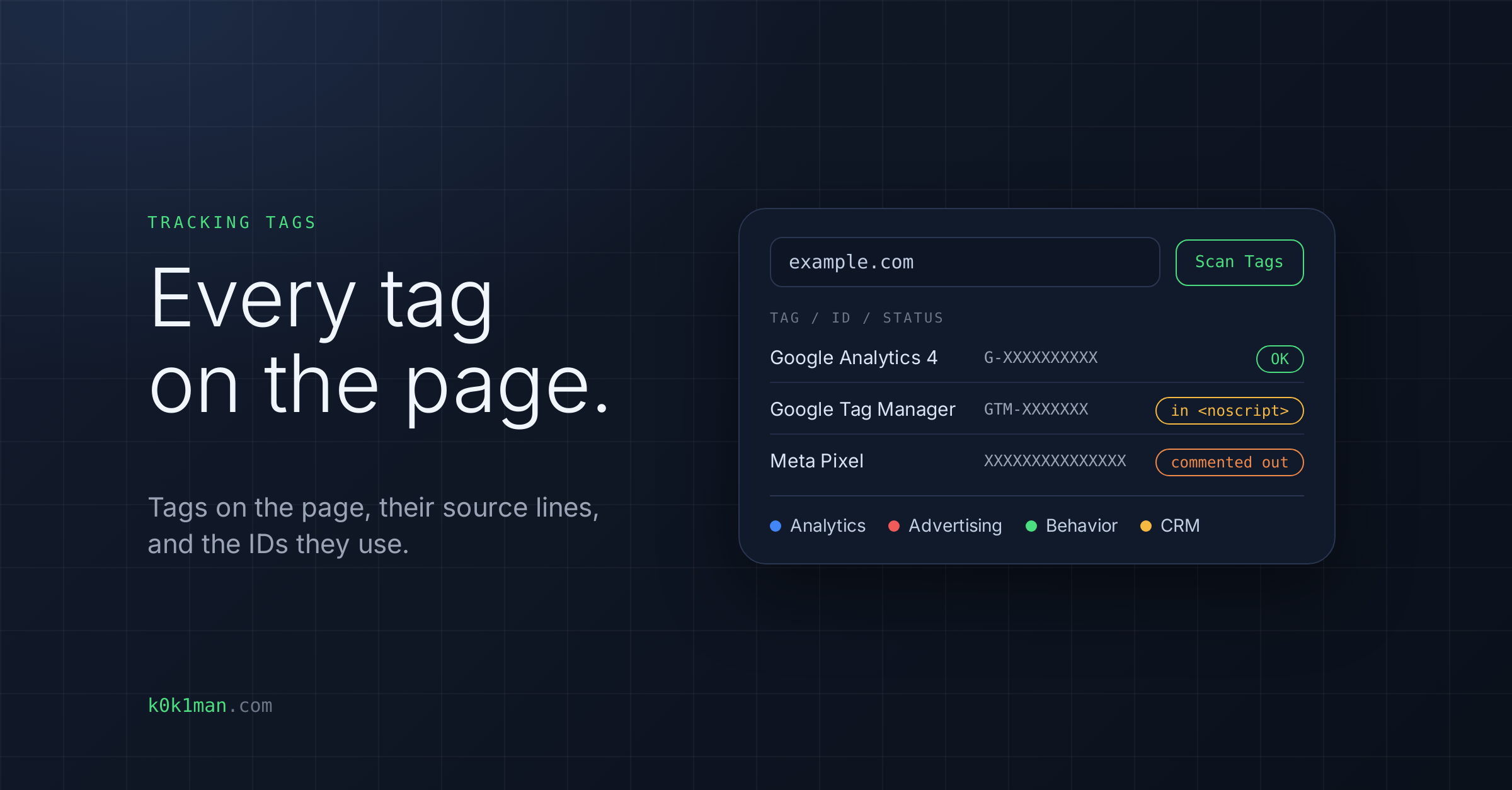
Enter a URL and see which analytics and advertising tags are on the page, where they are in the source, and which IDs they use.
What you get
- Every tag found: Google Analytics 4, Google Tag Manager, Google Ads, Meta Pixel, LinkedIn Insight Tag, TikTok Pixel, Hotjar, Microsoft Clarity, HubSpot, and Segment.
- The exact source lines for each tag, with line numbers and surrounding context.
- The tracking ID behind each tag (pixel, measurement, or container ID).
- Flags for duplicate tags, commented-out tags, and tags that appear only in a noscript block.
Who it is for
Marketers, analysts, and developers who need to confirm that tracking is installed where they expect it.
How the scan works
The tool loads the page in headless Chromium and records both the page source and the network requests it makes. That means tags added by JavaScript are included.
What it does not do
- It does not see tags that only load after a consent banner is accepted, in an A/B test variant, or behind a login.
- It does not change anything on your site.
Before you act on a flag
Confirm each flagged issue in your page source before changing anything. Scan results can count the same tag more than once, so a "found 2 times" flag should be checked, not assumed.